Connect GoHighLevel email and SMS
Last updated: October 9, 2026
Read and reply to your GoHighLevel emails and text messages right from your Winly inbox, next to your Instagram and Facebook messages.
🎥 Prefer to watch? Watch the 1.5-minute walkthrough.
Before you start
Sign in to Winly as an admin.
Your GoHighLevel plan needs to include API access.
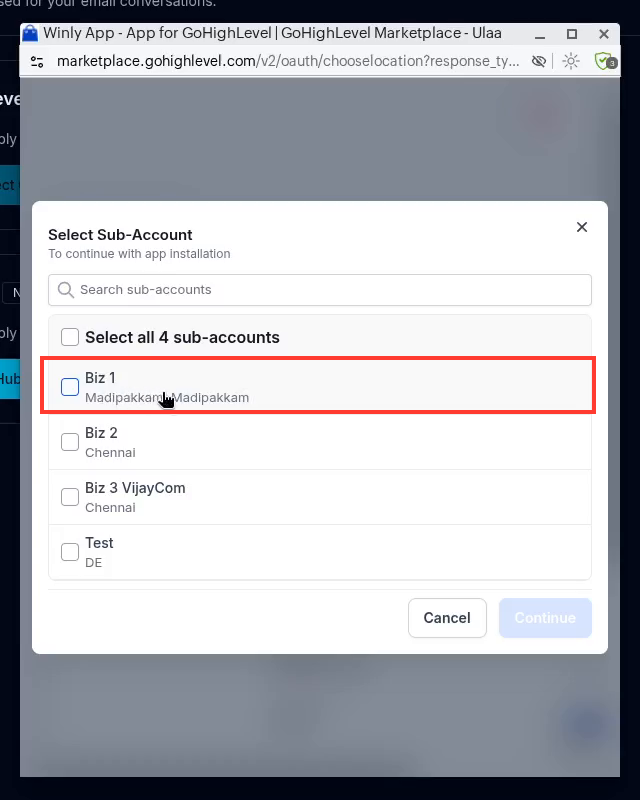
Pick one GoHighLevel sub-account that has both your email and a phone number set up. Email uses the email, and SMS uses the phone number.
Connect email
Open Settings → Email.
On the GoHighLevel card, select Connect GoHighLevel.
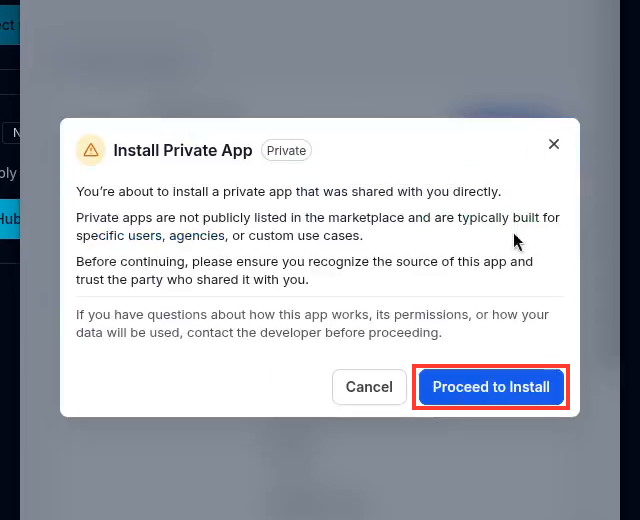
A GoHighLevel window opens with an Install Private App notice. Winly's app is shared with you directly rather than listed in the GoHighLevel marketplace. Select Proceed to Install.
Choose one sub-account, the one with both your email and phone number, then select Continue.
Review the permissions and select Allow & install.
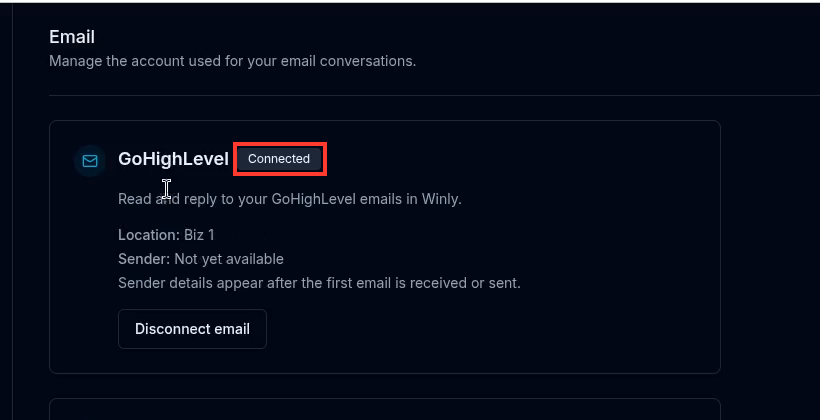
Back in Winly, confirm the card shows Connected with your location name. Sender details appear after the first email is sent or received.
Connect SMS
Open Settings → SMS.
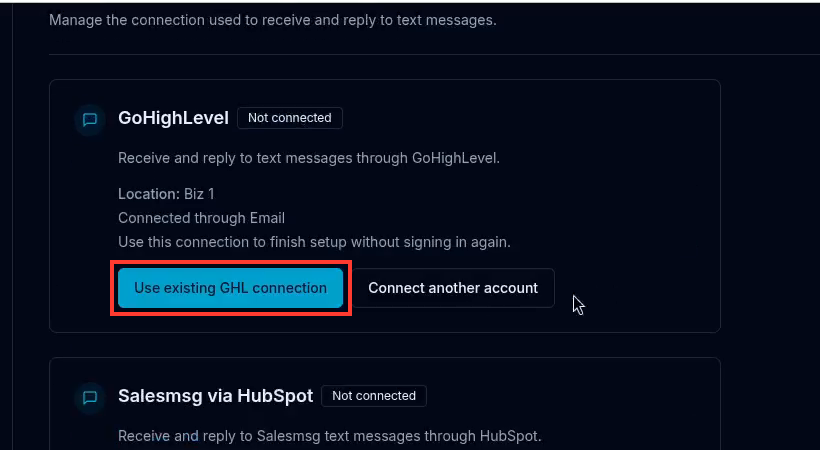
On the GoHighLevel card, select Use existing GHL connection to use the same location you connected for email. To use a different account, select Connect another account.
Confirm the card shows Connected. Your sending number is managed in GoHighLevel.
Reply from your inbox
Email: messages stay grouped in their thread. Select Reply to thread to respond.
SMS: texts show as a normal conversation. Type your reply and send.
Attachments and images aren't supported yet. Emails and texts are text only for now.
Disconnect email or SMS
Open Settings → Email and select Disconnect email, or open Settings → SMS and select Disconnect SMS.
Troubleshooting
Email or SMS won't connect: Confirm your GoHighLevel plan includes API access and that you're signed in to Winly as an admin.
Can't find your GoHighLevel location: Make sure your GoHighLevel user has access to that sub-account.
Sender or sending number shows "Not yet available": This is normal until the first email or text is sent or received.
An attachment or image doesn't come through: GoHighLevel email and SMS are text only for now.
A pop-up does not open: Allow pop-ups for Winly, close any old GoHighLevel windows, and start again.
Still stuck? Contact Winly Support.